
Start with WPLocation Free 1.1.0, connect a country source, then save and test one audience. Free works on its own; Pro uses the same country engine for WooCommerce.
Before you start
- Use WordPress 6.8+ and PHP 8.3+. The initial tested scope is single-site WordPress 6.8.3 and 7.1.3 on PHP 8.3.
- Back up your site and try the setup on staging first.
- Have a current, licensed GeoLite2 Country MMDB or your own MaxMind account ready. No country database is bundled.
Install and activate the plugin
- Download WPLocation Free. The download form offers a no-email option. Free needs no paid WPLocation license key.
- In WordPress, open Plugins → Add Plugin → Upload Plugin. Choose the Free ZIP, select Install Now, then Activate.
- Open WPLocation. You will find the content-rule screens, Shortcodes, Settings, Diagnostics and Activity Log.
Configure country detection
Open WPLocation → Settings and choose one of these paths:
Use WPLocation → Diagnostics to confirm a readable GeoLite2-Country source, review its build date and test a public IP address you are permitted to test. Resolve source errors before relying on a country rule.
Automatic database updates are opt in. After checking the source, enable Enable daily database update checks in Settings if wanted, then Save update settings. WP-Cron needs site traffic or a configured server cron.
Create and test a first rule
- Create and save a test page in WordPress.
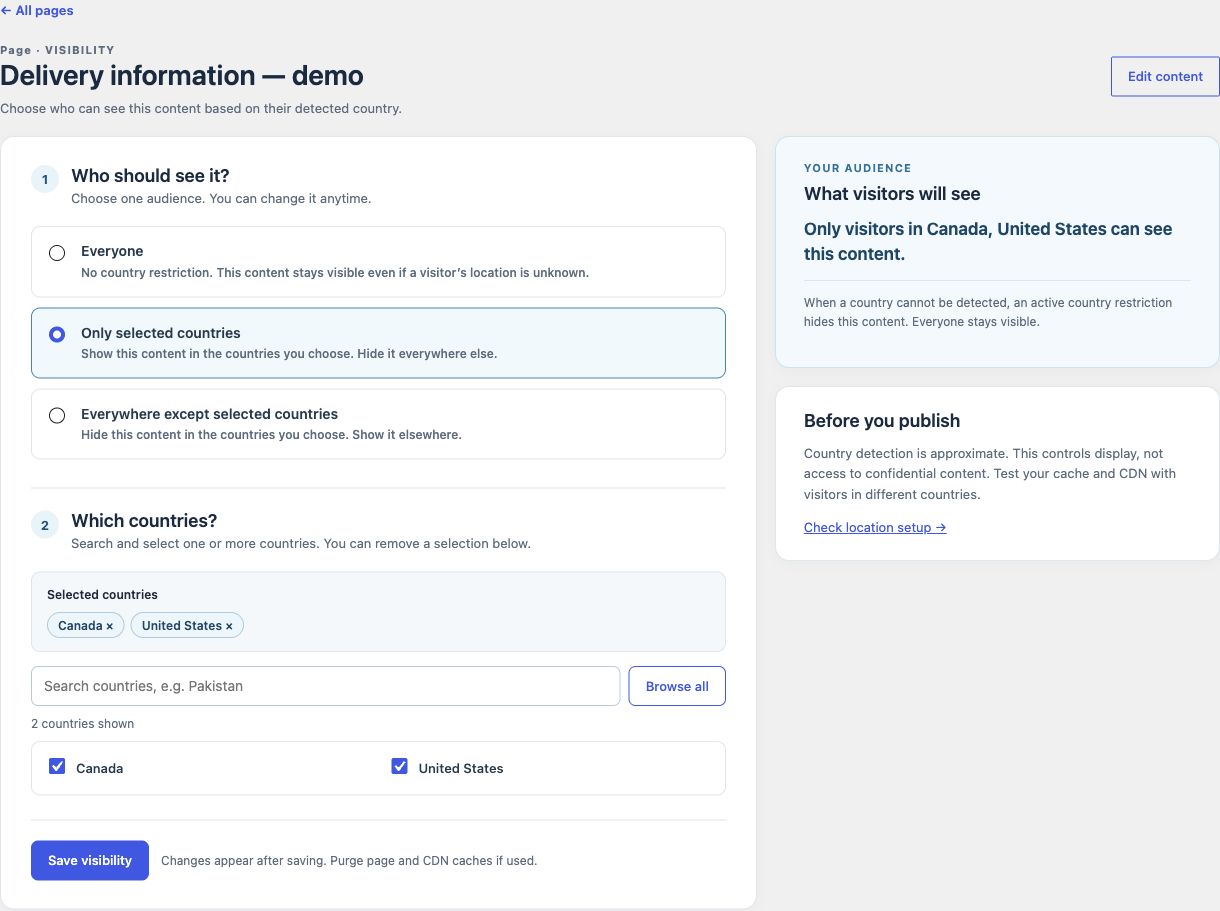
- Open WPLocation → Pages, find the page and select its title.
- Choose Only selected countries or Everywhere except selected countries. Select at least one country and review the audience summary.
- Select Save visibility. Under Check the saved result, choose one allowed country and one denied country.
- To remove the restriction, choose Everyone and save. The current editor requires at least one country for a restricted audience; do not use a blank selection as a setup step.
Check caching and unknown locations
Purge your page and CDN caches, then test the public URL from an allowed and denied location. Repeat the requests after the cache has been populated. A saved-rule test checks the rule; it does not prove that the public cache serves the right result.
Unknown countries are hidden by an active restriction. A blocked singular Free page or post returns your theme’s 404 response. Unrestricted content remains available. IP location is approximate and cannot secure confidential information.
Follow the cache checklist and troubleshooting steps if the public result differs.
Add Pro when your store needs it
For WooCommerce product and product-category audiences, install Pro as a second plugin and keep Free active. Follow Pro installation and licensing. For content-only work, continue with page rules, the Country visibility block or shortcodes.
Contact WPLocation with your software versions and the result you expected. Keep keys and customer data private.