
Updated 6 November 2026. The WPLocation screens below are from a disposable test installation. No account ID or license key appears in the screenshots.
WPLocation Free 1.1.12 uses a local GeoLite2 Country MMDB. A MaxMind account is needed for WPLocation to download it for you. The plugin does not send visitor IP addresses to MaxMind for each page view. The database stays on your server, so local country lookups do not consume MaxMind web-service queries.
When GeoLite is enabled, this product uses GeoLite Data created by MaxMind, available from MaxMind. MaxMind’s GeoLite license requires attribution and current data; review its terms for your use.
How much is free?
MaxMind currently allows 30 total direct database downloads per GeoLite account in a rolling 24-hour period and lists 1,000 GeoLite web-service lookups per day per service. These are different limits. WPLocation’s local database mode uses the download allowance when you first download or update the MMDB; it does not use the web-service lookup quota for visitors. WPLocation itself does not issue free “credits” or show a MaxMind account balance. To see account-specific usage, use MaxMind’s Download History or Query Usage Report after signing in. Paid MaxMind service credit is a separate balance for paid web services, not a requirement for this local database setup. MaxMind GeoLite comparison, MaxMind download limits, MaxMind service credit.
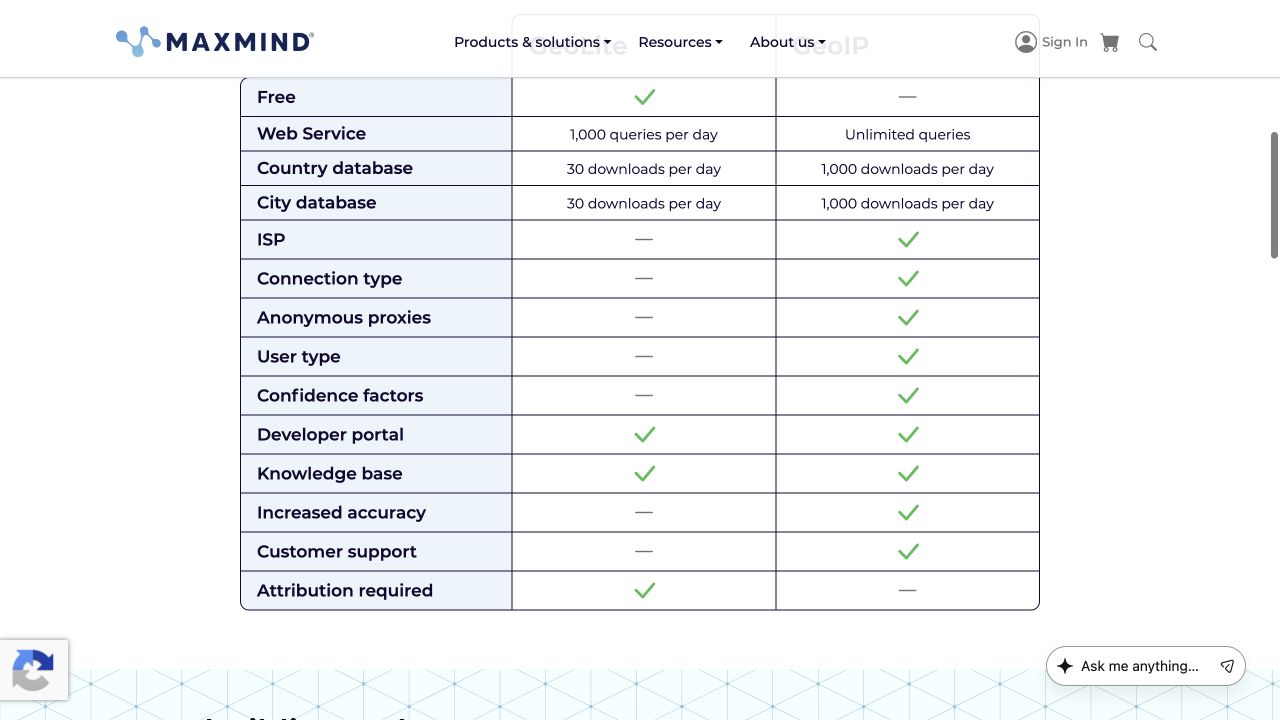
Screenshot: MaxMind GeoLite, captured 27 October 2026.
Create or open your MaxMind account
Go to MaxMind’s GeoLite page and choose Sign up for GeoLite. Enter your own information, complete MaxMind’s account and email steps, and select the free GeoLite access available in your portal. If you already have an account, sign in instead. Read the GeoLite terms and the attribution requirements for your use.
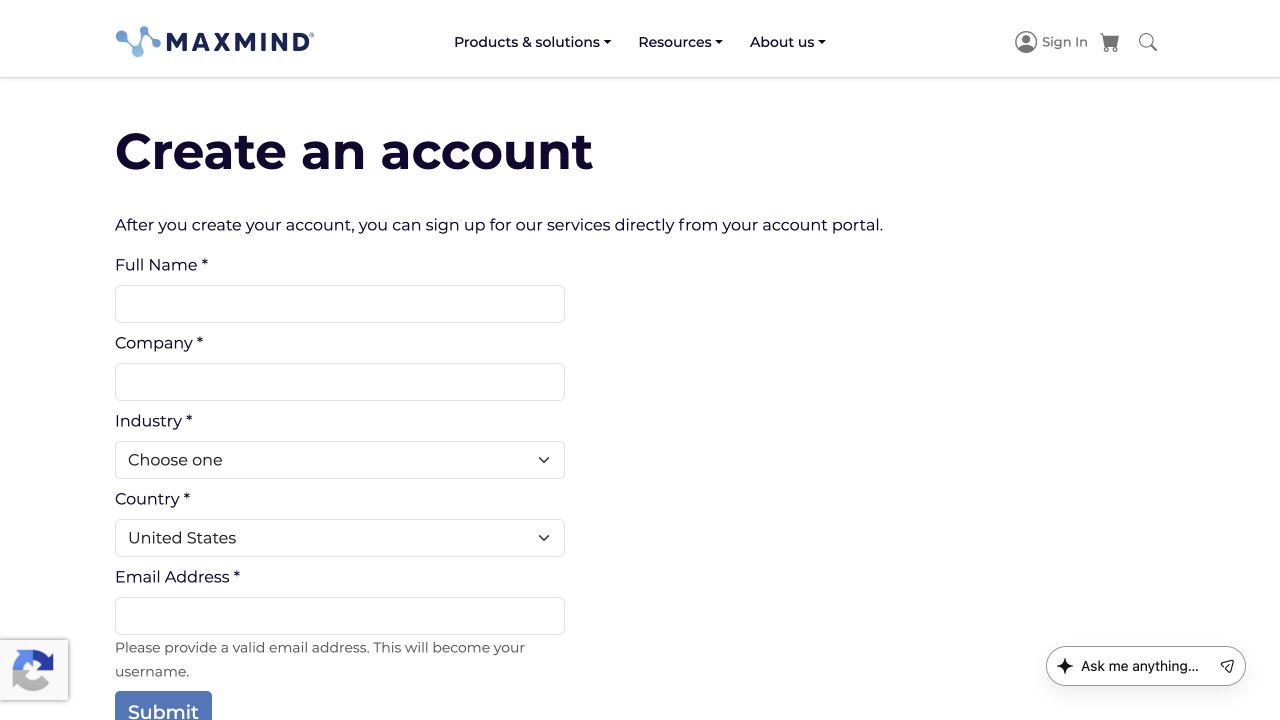
Screenshot: MaxMind account creation, captured 27 October 2026.
Find your account ID and make a license key
In the MaxMind portal, open Account → Account Information to find the numeric account ID. Then open Account → Manage License Keys → Generate new license key. Give the key a description such as “WPLocation site.” MaxMind displays the full key only when it is created. Copy it into your own password manager; never post it in a support ticket, screenshot, chat, or public document. If you lose it, create a replacement and retire the old key after your site works with the replacement. Find account ID, generate a key, key handling.
Connect WPLocation and download the country file
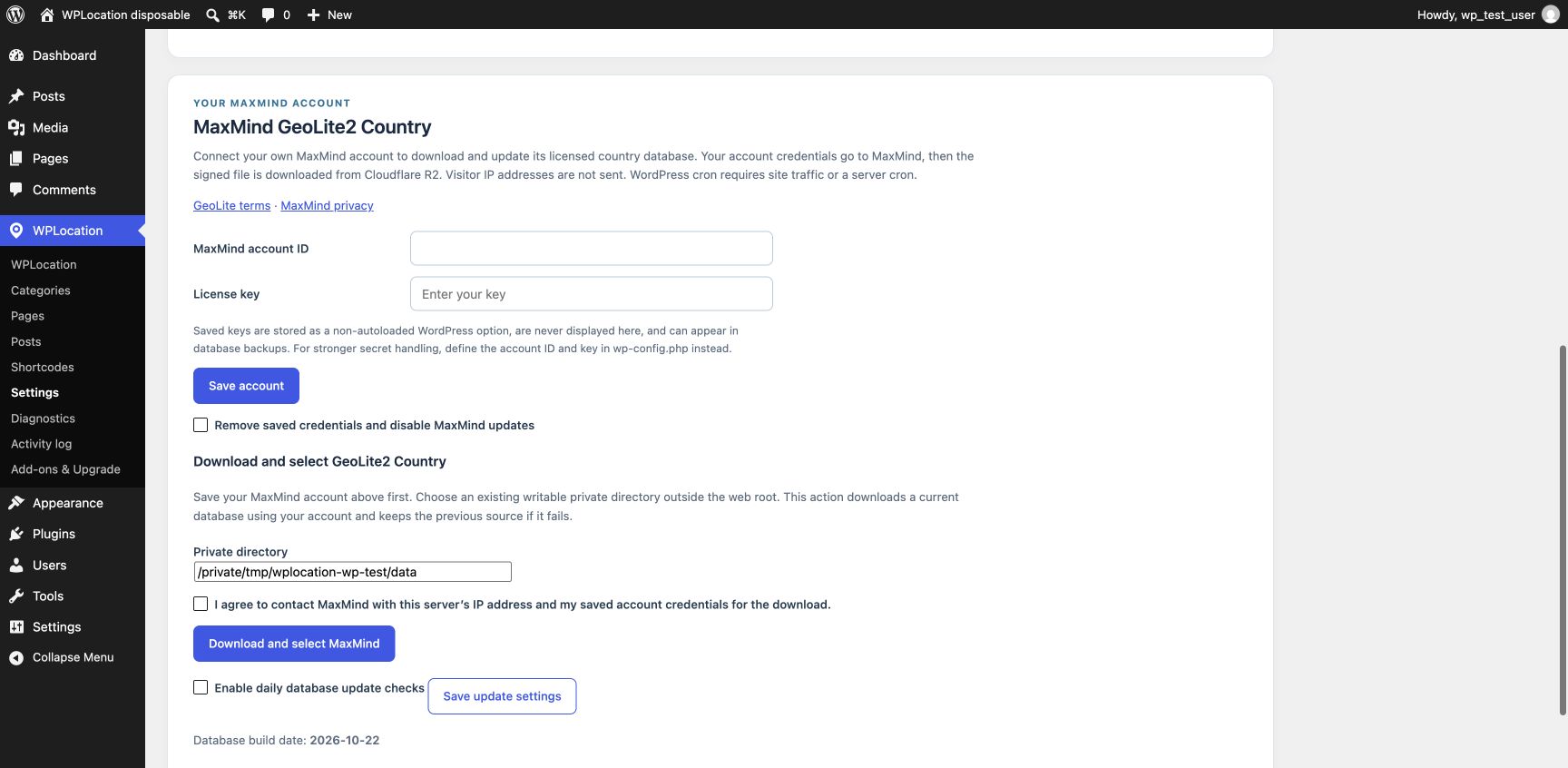
In WordPress, open WPLocation → Settings → Use MaxMind. Enter the account ID and license key, then select Save account. The key field is blank again after saving; WPLocation does not display a saved key. Choose a private absolute server directory outside the public web root, check the download consent box, and select Download and select MaxMind. Version 1.1.12 can create one requested private subdirectory when its parent exists and is writable by PHP. It now explains missing, public and unwritable paths in Settings rather than returning only configuration_error. The plugin checks the file before switching sources. If a download fails, it keeps the previous source. Saved keys are ordinary, non-autoloaded WordPress options and can appear in database backups; the WPLOCATION_MAXMIND_ACCOUNT_ID and WPLOCATION_MAXMIND_LICENSE_KEY constants in wp-config.php are an alternative for stronger secret management and take priority over the form.
Choose a private server folder
Enter an absolute server path, not a website URL. To find your WordPress installation path, open Tools → Site Health → Info → Directories and Sizes and look for WordPress directory location. This is a starting point, not necessarily a safe database destination. If the listed path ends in /home/account/www/ or /home/account/public_html/, a sibling such as /home/account/.wplocation/ may be suitable only if that parent is outside the public web root and PHP can write to it. Your host can confirm the web root and owner/group permissions; never assume every www parent is private. See WordPress Site Health help ↗.
Do not use wp-content/uploads, the plugin folder or any other folder under the public web root. WPLocation 1.1.12 can create one private subdirectory with mode 0700 under a writable parent. An existing folder also needs PHP read, write and traversal access. If PHP runs as the owner, 0700 is appropriate; otherwise your host may need to set owner/group permissions. Never use 0777. PHP must be able to traverse every parent directory.
When setup fails: In 1.1.12, the Settings message and Diagnostics identify a missing parent, public path, file in place of a folder, or write failure. Correct the folder path and retry once. In 1.1.11, these first-download path problems appeared as the generic configuration_error, and that version required the private folder to exist already. Keep your MaxMind key out of support messages and screenshots.
Check it and enable updates
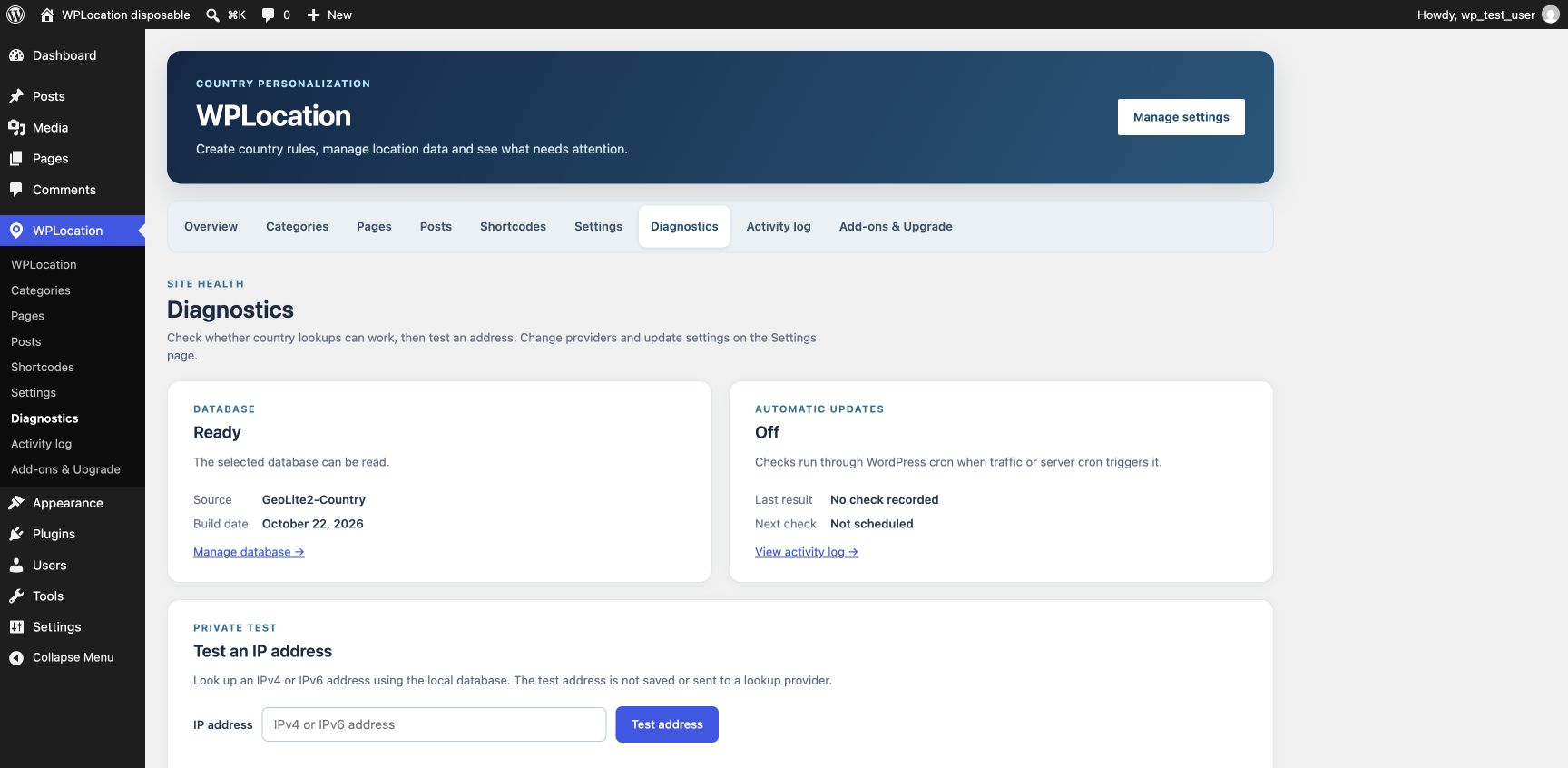
Open WPLocation → Diagnostics. Confirm the database says Ready, check its build date, and use the private IP test. Then return to Settings and select Enable daily database update checks. WordPress cron needs site traffic or a server cron. Review the Activity Log for failures and keep the data current under MaxMind’s terms. Purge and test any page or CDN cache after changing a source or country rule; IP location is approximate and is unsuitable as a security boundary.
If you cannot connect: Check that the account has GeoLite access, the ID and key are correct, the private directory is writable by PHP, and outbound HTTPS to MaxMind’s download endpoint and its signed file host is available. MaxMind limits free downloads, so repeated manual retries can exhaust the daily allowance. The WPLocation WordPress.org package does not bundle a database or a license key.
Contact WPLocation with your software versions and the result you expected. Keep keys and customer data private.